
SMB Shares with S3 WORM
With eEKAS, you can expose a WORM-protected S3 bucket as an SMB share. Users save files through their familiar SMB client, while new objects receive the bucket’s default COMPLIANCE retention. This chapter explains setup, access permissions and operation.
How it works and when to use it
The SMB gateway exposes the selected bucket directly. Files are visible through SMB and in S3; no separate archive copy is created. SMB 2 and SMB 3 clients are supported. The IP Group provides the service address and moves the gateway between eligible nodes.
COMPLIANCE protects object versions: retention cannot be shortened for existing protected versions. Expiry permits deletion but does not automatically remove objects. WORM does not replace backup or replication.
1. Prerequisites
- Healthy eEKAS cluster with a completed S3 cluster drive.
- IP Group with at least one service address and all intended gateway nodes.
- DNS and routing allowing SMB clients to reach the service address.
- SMB or directory users and groups for share access.
- Agreed retention period and adequate storage capacity.
2. Create the WORM bucket and SMB gateway
- Open S3 Management → Users / Access Keys. Create a dedicated S3 identity for the bucket owner if needed.
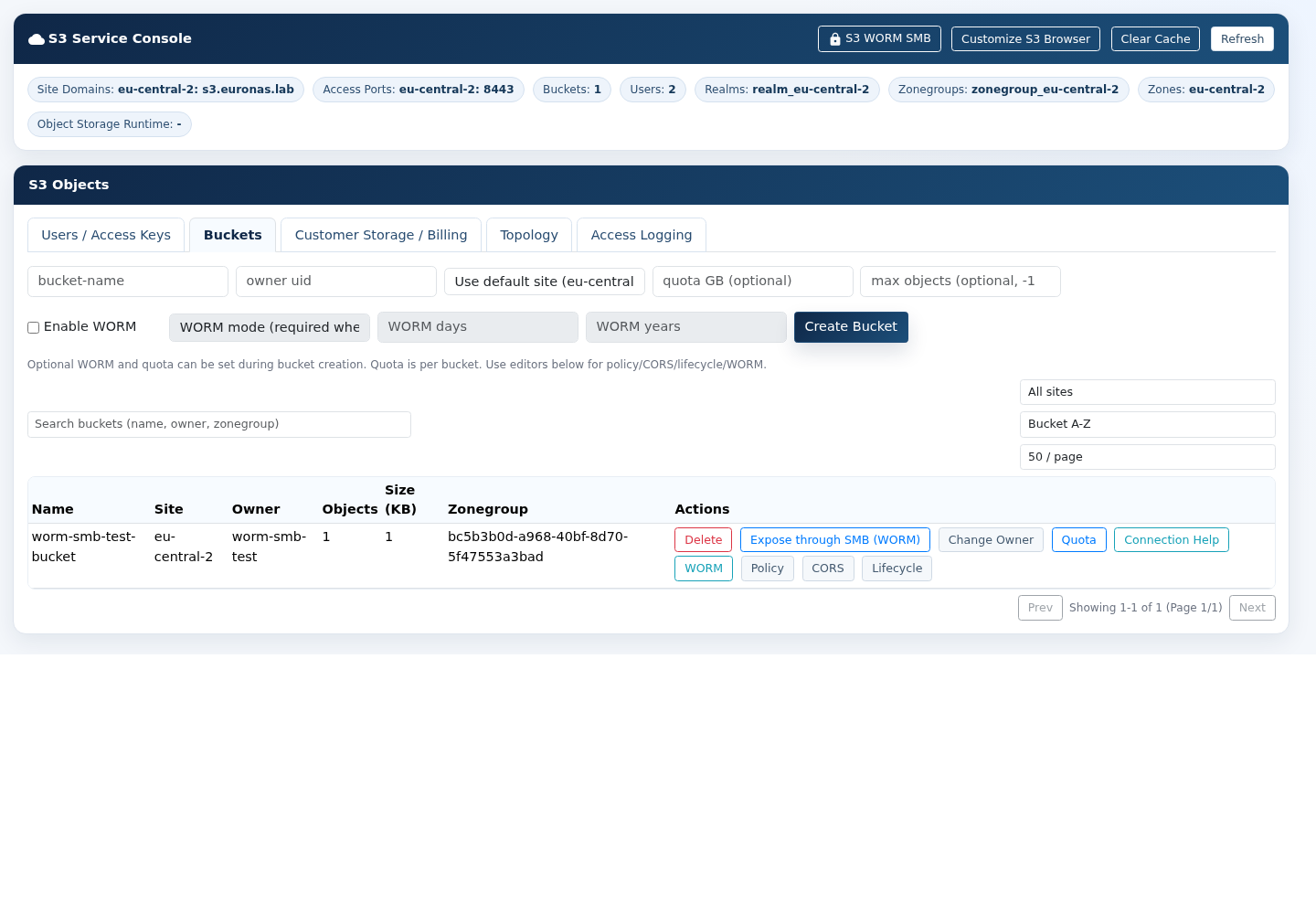
- Open Buckets and create a bucket. Enable WORM, choose COMPLIANCE and enter retention days or years.
- In the bucket row choose Expose through SMB (WORM).
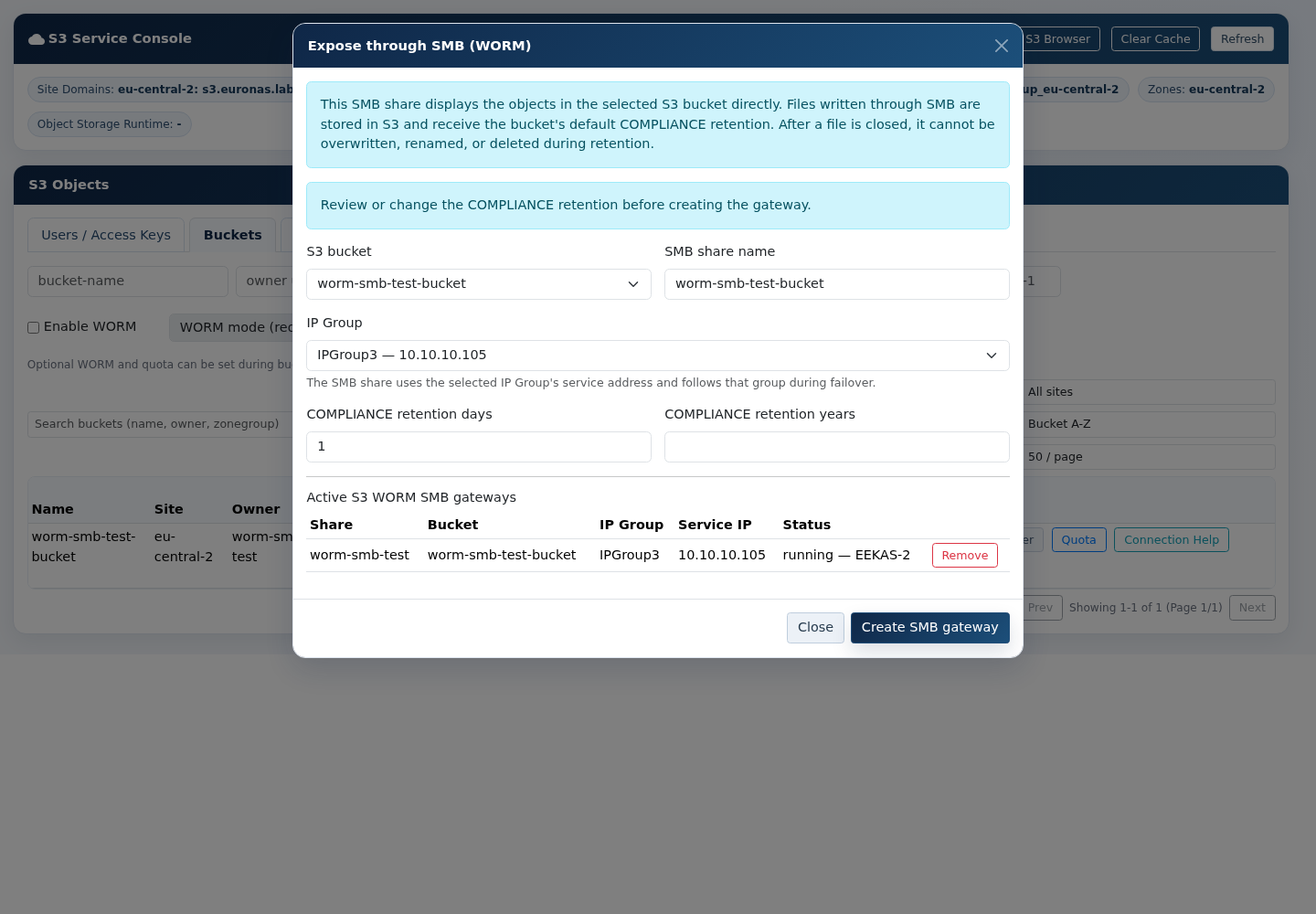
- Confirm the bucket and enter the SMB share name.
- Select the IP Group. If only one eligible group exists, it is preselected.
- Review COMPLIANCE retention and create the SMB gateway.
3. Configure SMB access
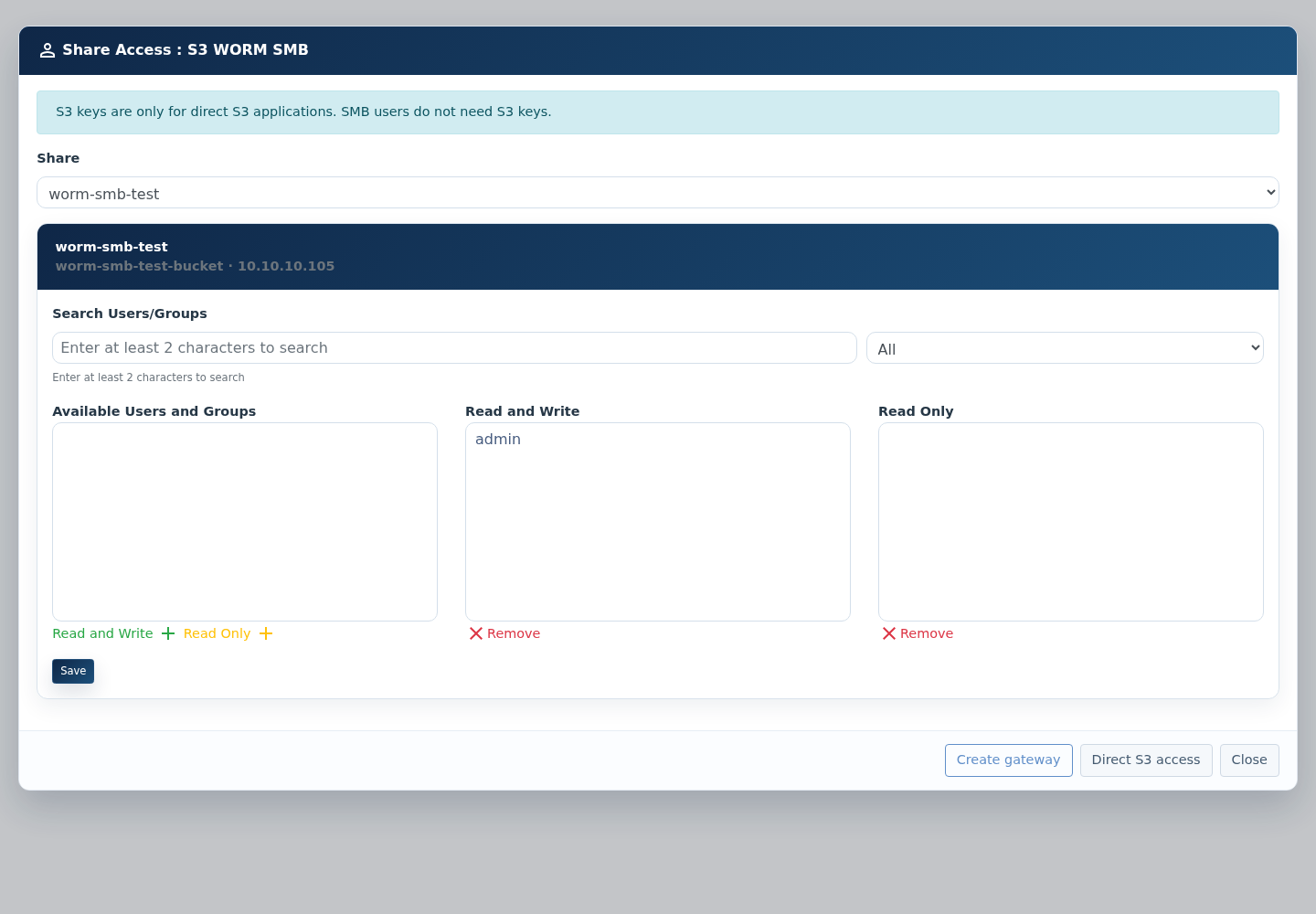
Read and Write permits new files but does not override retention on existing protected files. SMB users do not need S3 keys.
4. Optional direct S3 access
Provide direct S3 credentials only to applications using the S3 API.
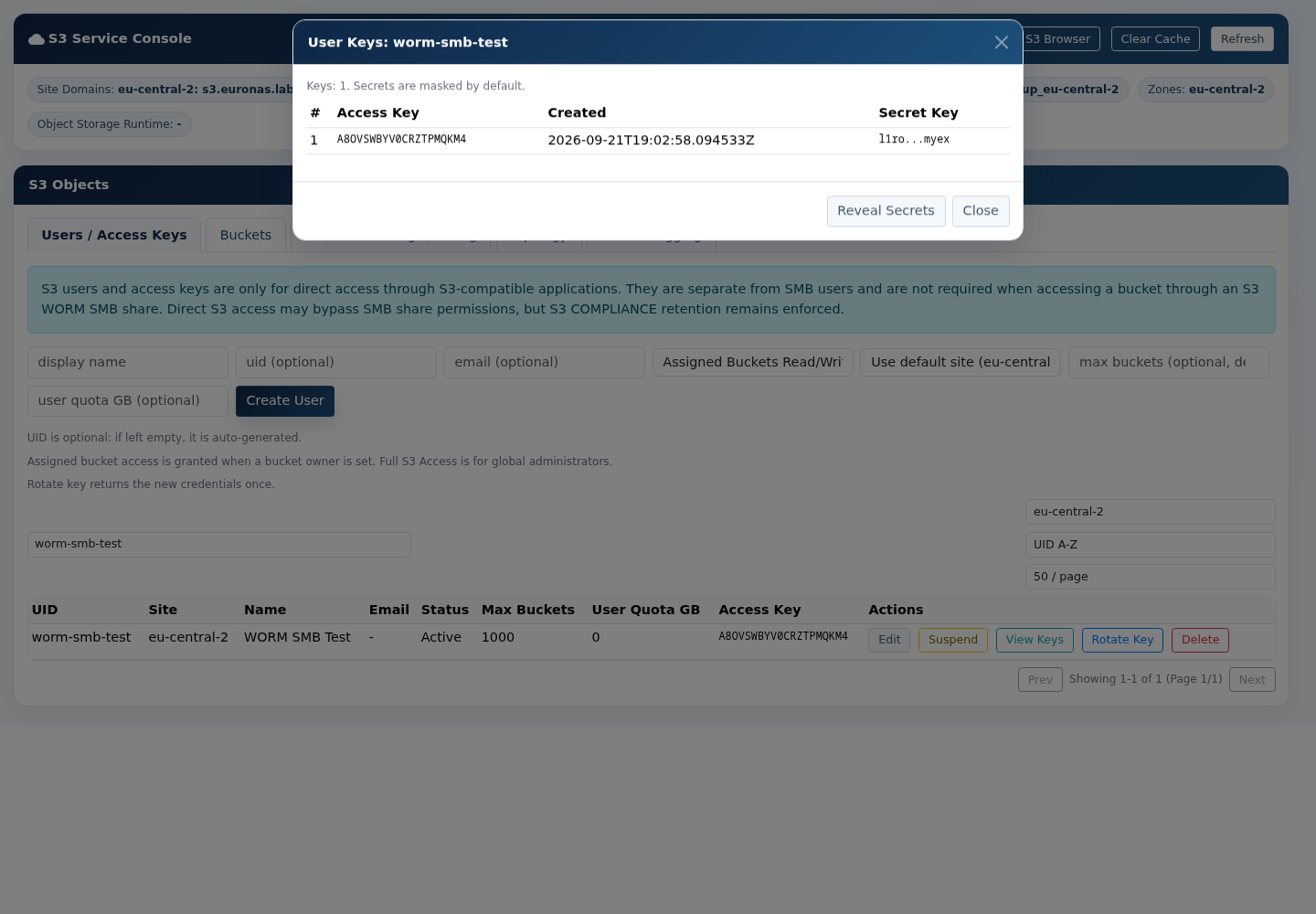
A direct S3 client with appropriate permissions can create newer versions or delete markers. A delete marker may hide the object from ordinary listings but does not delete its retained version. Issue direct keys only when needed.
5. Verify setup and monitor operation
| Check | Expected result |
|---|---|
| Gateway | Active and assigned to the intended IP Group. |
| SMB access | Authorized user opens the share, creates a test file, closes it and reads it again. |
| WORM | Overwrite, rename and delete attempts are rejected during retention. |
| S3 visibility | The same object is visible in the selected bucket. |
| Retention | The object version reports COMPLIANCE and a retention-until date. |
| Service movement | After a planned node transition the same service address and share are available on another eligible node. |
Monitor capacity, gateway state, retention policy, access assignments and recovery readiness. For site protection and independent backups see S3 Site Replication. Include shares, identities and gateway configuration in recovery checks.
6. Troubleshooting
| Symptom | Action |
|---|---|
| No buckets in gateway dialog | Confirm the S3 cluster drive is complete and the bucket is not assigned to another WORM SMB gateway. |
| No eligible IP Group | Create an IP Group with service address and eligible nodes; reopen the dialog. |
| Share cannot be opened | Check service-address reachability and the user’s Share Access assignment. |
| Files visible but cannot be changed | Expected for protected files during retention. Use a normal SMB share for mutable content. |
| S3 keys not visible | Open Direct S3 access for the share; reveal the secret only when required. |
| Direct S3 delete appears successful | Versioned deletion can create a delete marker. The retained version remains protected until expiry. |
7. Remove the gateway
Removing the SMB gateway preserves the S3 bucket and retained objects. Review retention requirements before deleting a bucket.