
eEVOS Off-Site Disaster Recovery
Use Off-Site VM Disaster Recovery to copy virtual machines from a remote eEVOS installation to this system. You can run copies on a schedule or keep selected VMs synchronized continuously so that they are available after a site failure.
Start a recovered VM only after you have confirmed that the source VM is shut down or isolated. Running the same VM at both sites can cause duplicate IP addresses, conflicting services, and application data corruption.
What the DR service does
- Connects this recovery system to one or more remote eEVOS installations.
- Copies the selected VMs to a local target drive.
- Runs according to a schedule or maintains a recent asynchronous copy.
- Shows the state of every protected VM in the DR overview.
- Allows an administrator to start a recovered VM when the source site is unavailable.
Off-site replication complements backups; it does not replace them. Keep separate, retention-based backups for deleted files, logical corruption, and ransomware recovery.
Open the DR overview
- Sign in to the eEVOS system that will hold the recovery copies.
- Open Offsite VM Disaster Recovery (DR).
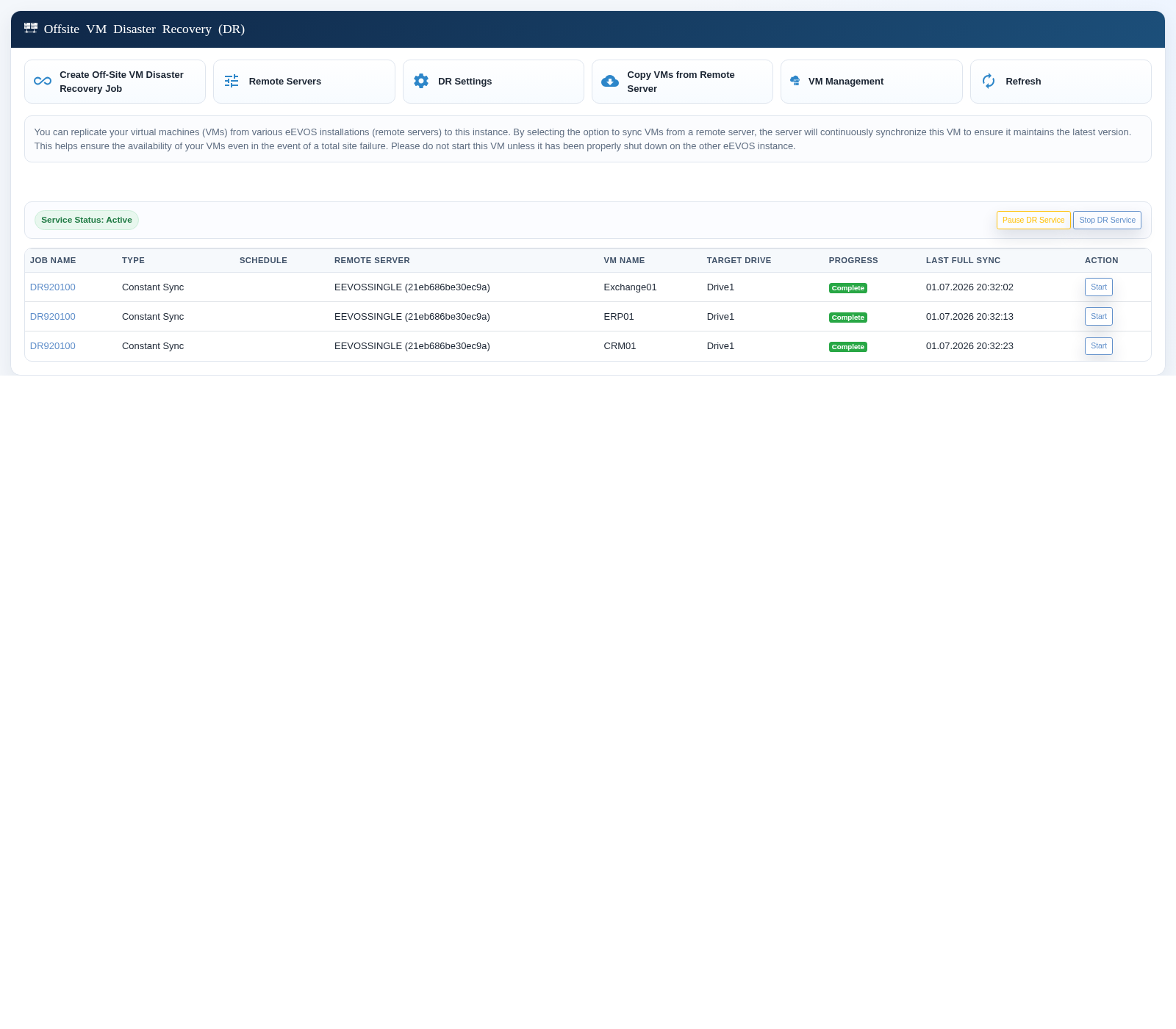
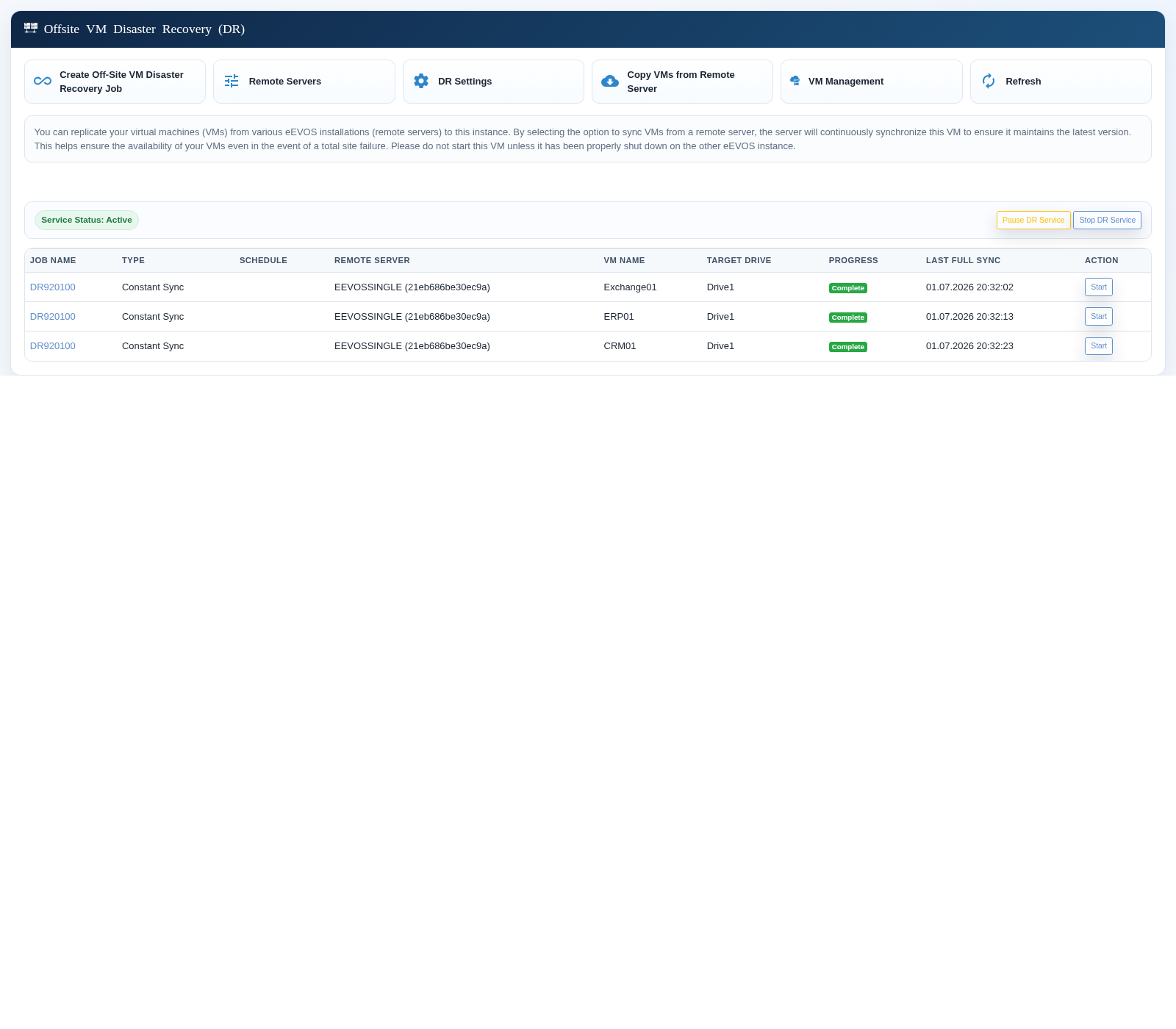
- Confirm that Service Status is active.
- Review existing jobs, their remote server, VM, target drive, progress, and last full synchronization.
Create a DR job
- Select Create Off-Site VM Disaster Recovery Job.
- Choose one of the two replication types.
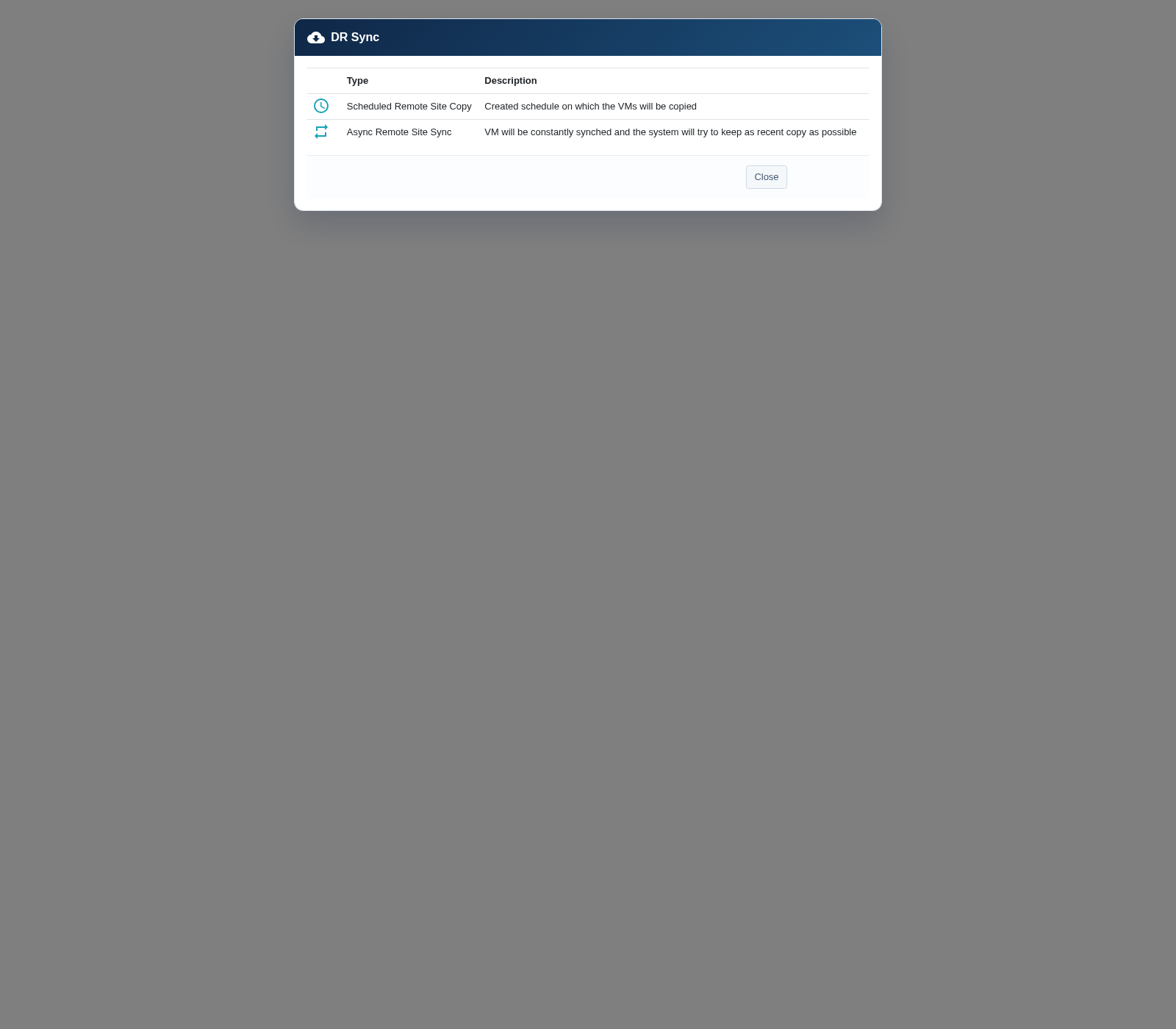
| Type | How it works | Choose it when |
|---|---|---|
| Scheduled Remote Site Copy | Copies the selected VMs on chosen weekdays and at a defined start time. | A predictable copy window and controlled bandwidth use are more important than the shortest recovery point. |
| Async Remote Site Sync | Continuously attempts to keep the recovery copy as recent as possible. | You need a shorter recovery point and have sufficient bandwidth and target capacity. |
Configure a scheduled copy
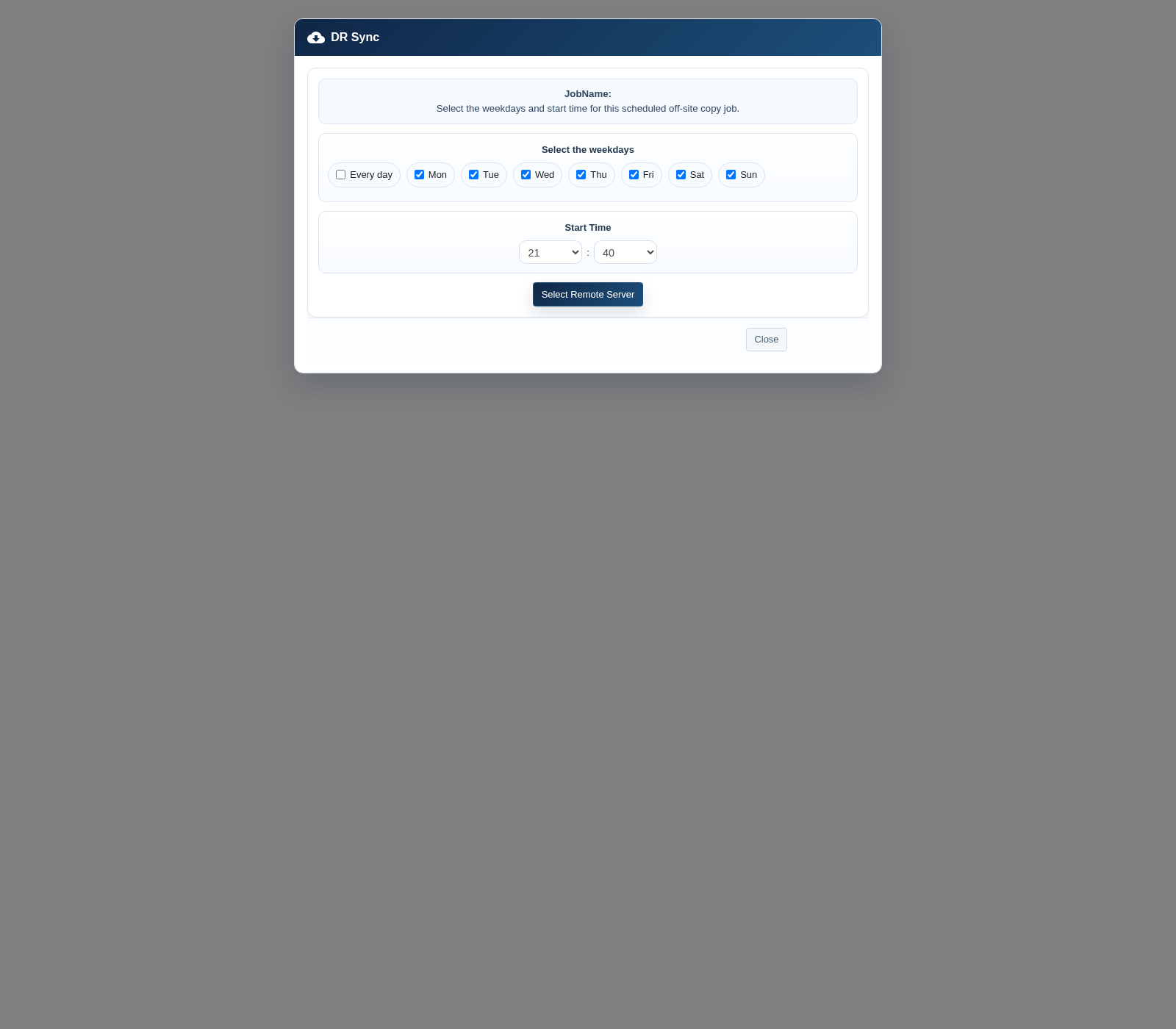
- Select Scheduled Remote Site Copy.
- Enter a clear job name.
- Select the weekdays on which the job should run.
- Set the start time. Choose a window that does not overlap with heavy production or backup activity.
- Select Select Remote Server.
Configure asynchronous synchronization
- Select Async Remote Site Sync.
- Choose the remote eEVOS installation that contains the source VMs.
- Continue to VM and target-drive selection.
Asynchronous synchronization minimizes the age of the recovery copy, but replication delay still depends on change rate, network throughput, storage performance, and interruptions. Treat the displayed last synchronization time as the current recovery point.
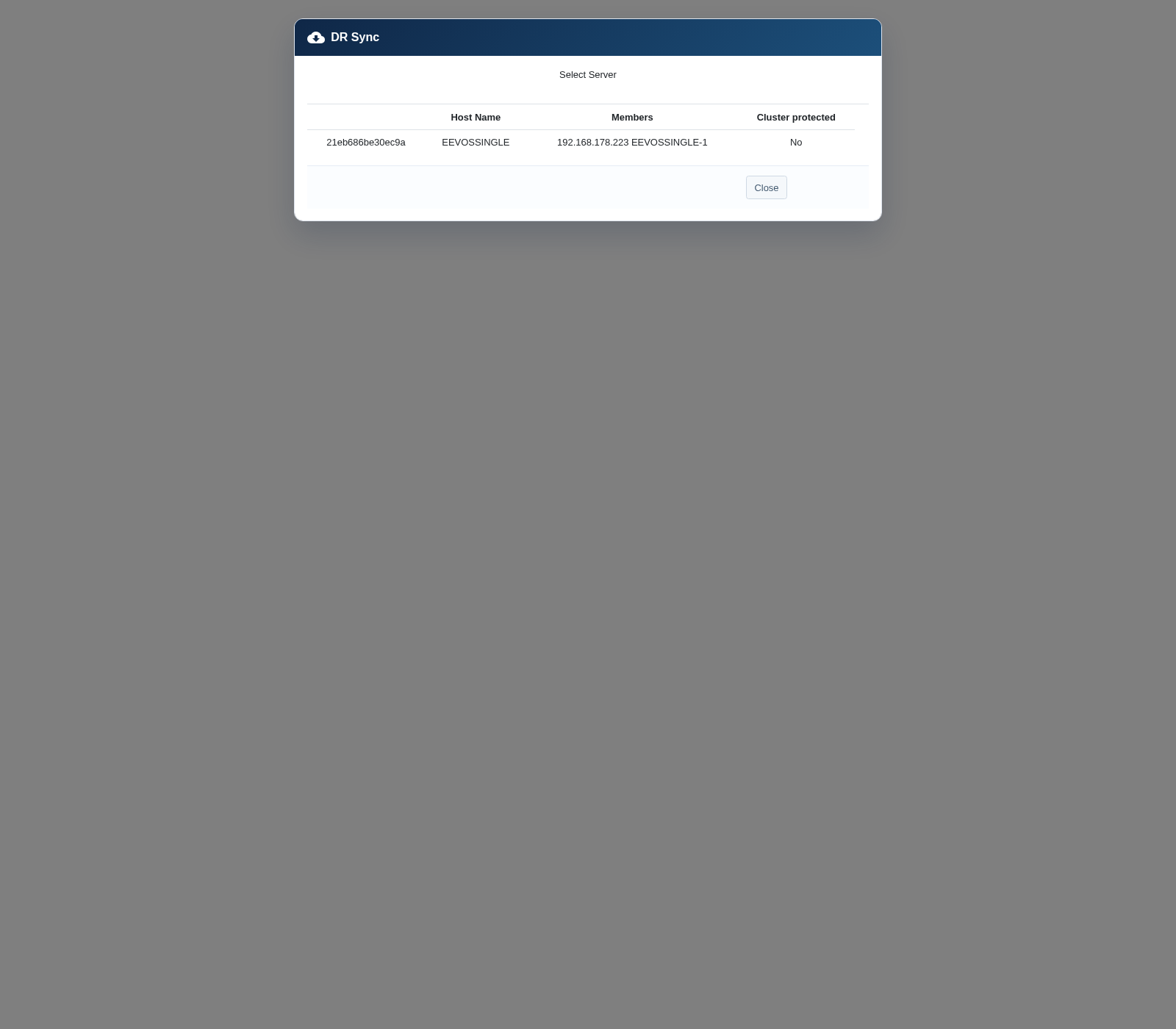
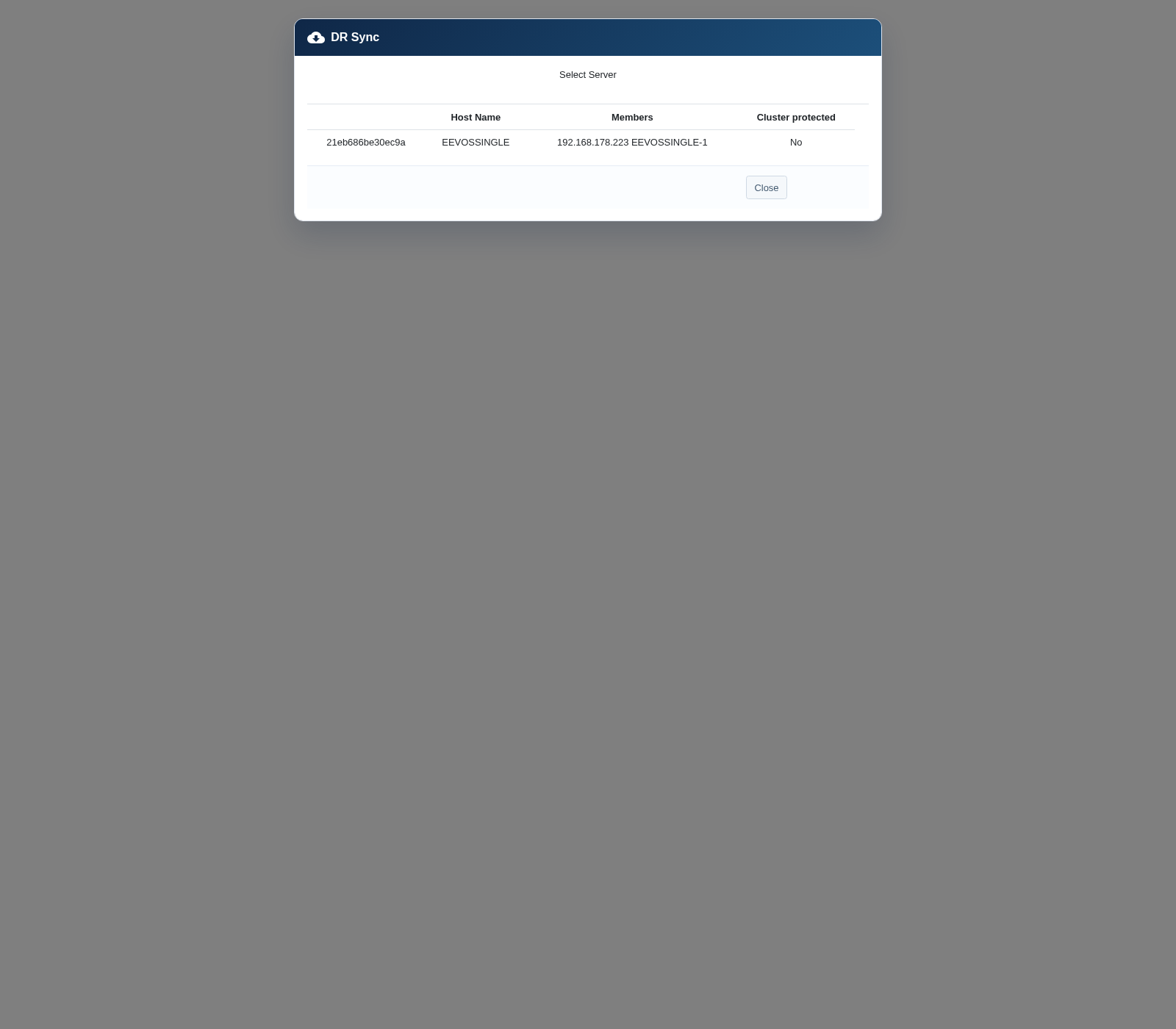
Select the remote installation
The server list shows the configured remote installations, their members, and whether they are cluster-protected.
- Verify the host name and member addresses.
- Select the intended remote installation.
- If it is missing, close the wizard and configure it under Remote Servers first.
Select VMs and recovery targets
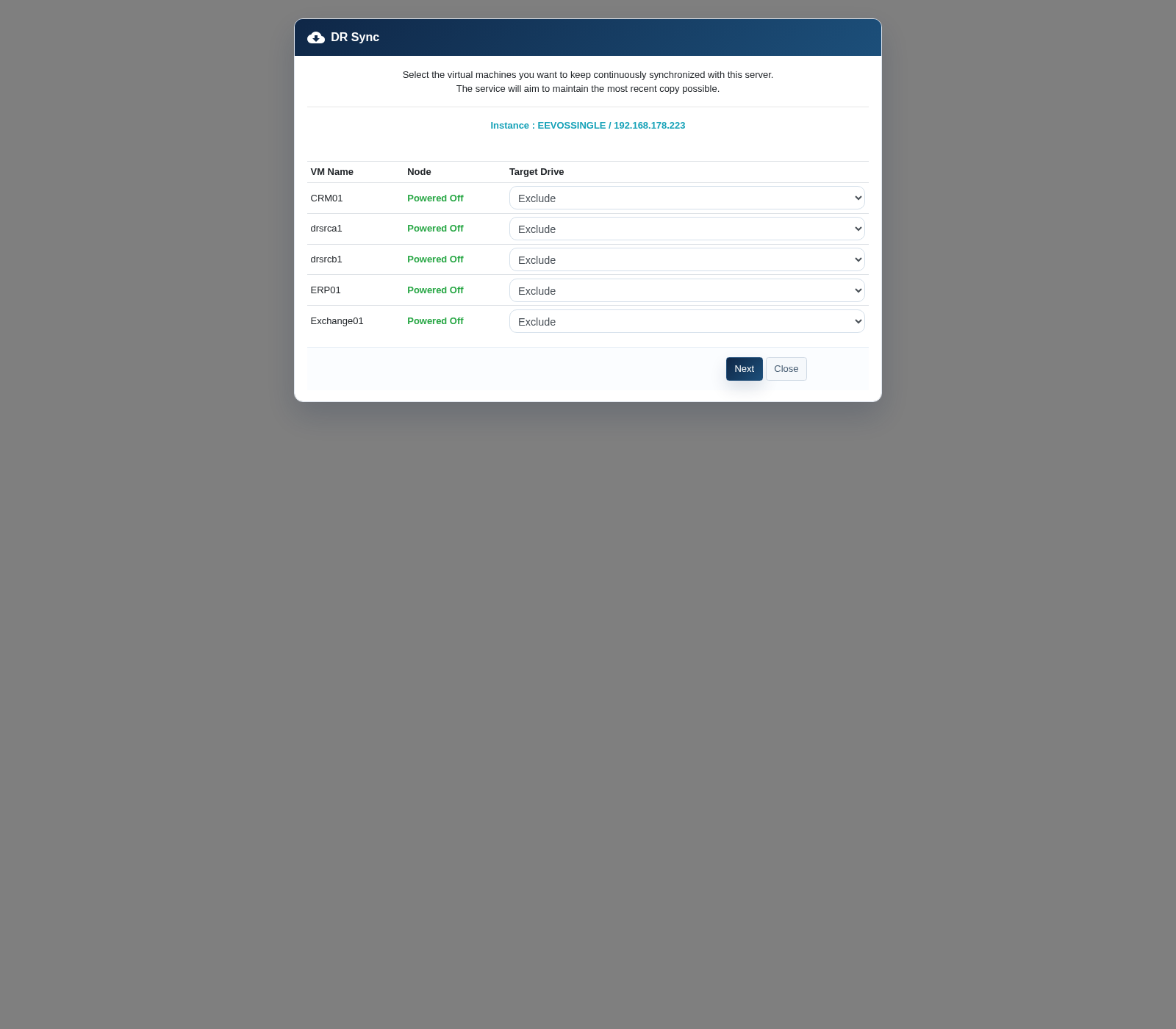
The wizard lists the VMs available on the selected remote installation.
- For each VM you want to protect, select the local target drive.
- Leave VMs that should not be copied set to Exclude.
- Ensure that the target drive has enough capacity for the VM, its changes, and operational reserve.
- Select Next, review the summary, and create the job.
Monitor the DR job
Return to the DR overview and use Refresh to update the status.
| Field | How to use it |
|---|---|
| Type | Confirms whether the VM uses a scheduled copy or continuous synchronization. |
| Remote Server | Identifies the source installation. |
| Target Drive | Shows where the recovery copy is stored. |
| Progress | Shows the current copy cycle. Complete means that cycle finished; an asynchronous job remains active for later changes. |
| Last Full Sync | Indicates the latest completed full synchronization and helps estimate the available recovery point. |
Investigate failed, stalled, or increasingly delayed jobs. Check network connectivity, remote-server credentials, free capacity, VM state, and system logs.
Recover a VM at the remote site
- Confirm that the production VM and its source network are shut down or isolated.
- Check the job status and last successful synchronization time.
- Verify that the recovery site's virtual networks and storage are available.
- Select Start for the required VM.
- Connect it to an isolated recovery network first when your runbook requires validation before production access.
- Verify boot, application consistency, IP configuration, DNS, dependencies, and user access.
- Document the recovery point and the services started at the recovery site.
Operational checks
- Review all DR jobs daily and investigate missed schedules or delayed synchronization.
- Monitor free space on every target drive.
- Test recovery regularly without connecting duplicate services to the production network.
- After application or network changes, update the recovery runbook.
- Protect remote-server credentials and limit DR administration to authorized users.
- Keep enough compute, memory, storage, and network capacity at the recovery site for the VMs you intend to start.
Choosing the replication type
Use scheduled copies for systems whose data can be recovered to a defined daily or weekly point and where replication traffic must stay within a fixed window. Use asynchronous synchronization for business-critical VMs that need a more recent copy. A mixed approach is often appropriate: continuous synchronization for the most critical services and scheduled copies for less time-sensitive workloads.